
When you search for "hide my IP address Chrome extension," the goal is clear: mask your IP while browsing. The truth is, a Chrome extension can only protect traffic inside the browser, not the rest of your device. That limitation matters if you stream, work remotely, or use apps that bypass the browser.
TL;DR
- Chrome extensions reroute only browser traffic, leaving other apps exposed.
- They cannot prevent DNS or WebRTC leaks without additional settings.
- A full-device VPN encrypts all traffic and blocks leaks across the entire network.
- KeenVPN offers a verified Chrome extension that syncs with its desktop app for complete coverage.
Hide My IP Address Chrome Extension: How It Works and What It Can’t Do
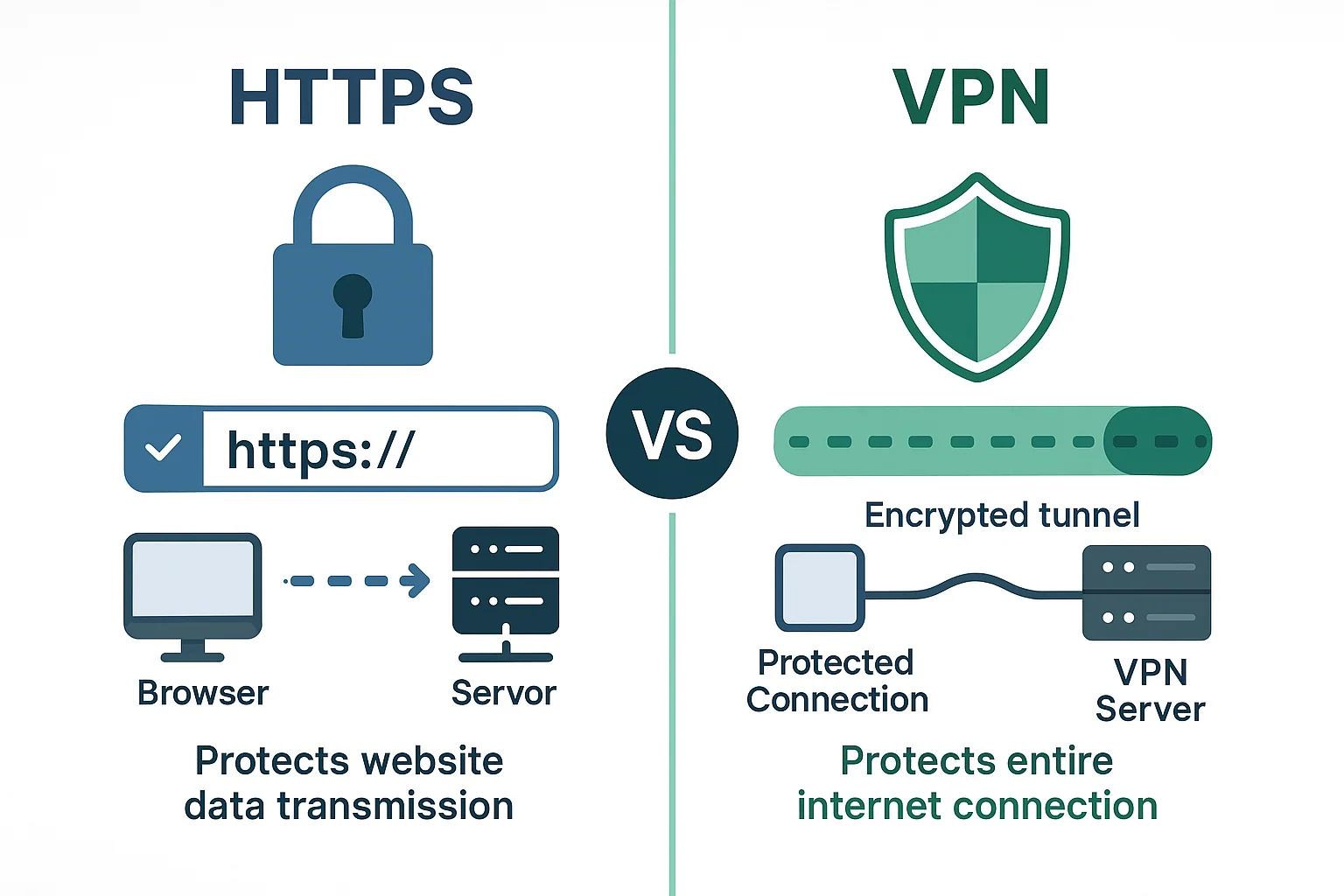
The extension creates a proxy tunnel for HTTP and HTTPS requests made by Chrome. When you enable it, the browser sends its data to a server you select, and that server forwards the request to the target site. In theory, the site sees the server’s IP instead of yours. However, the extension does not encrypt DNS queries unless the extension explicitly supports DNS-over-HTTPS, and it cannot control traffic from other browsers, email clients, or streaming apps. In practice, you may still expose your real IP through WebRTC leaks, which many sites exploit to discover your true location. A single sentence over thirty words: Because the extension operates only at the browser level, any application that bypasses Chrome, such as a video-calling program or a desktop game client, will continue to reveal your original IP address to remote servers, undermining the privacy you expect.
Prerequisites: What You Need Before Installing
First, ensure your Chrome browser is up to date; older versions may lack the security patches needed for proxy extensions.
Why Users Seek a Chrome Extension for IP Masking
Most people start their search for a “hide my IP address Chrome extension” after encountering a privacy‑related roadblock: a website that blocks content based on geographic location, a retailer that shows different prices depending on where you appear to be, or a streaming service that refuses to play because it detects a VPN. In addition, privacy‑conscious users may have encountered targeted ads that seem to follow them across the web, prompting a desire to obscure the digital fingerprint that their IP address contributes to. Because Chrome dominates the desktop browser market, an extension that works directly within the browser feels like a low‑effort, high‑impact solution. However, the convenience of a single‑click toggle often masks the fact that the extension’s protection is limited to the browser’s own network stack. Understanding those limits before you click “Add to Chrome” can prevent the false sense of security that leads to accidental data exposure in other applications.
Quick Answer – Expanded Details
- Chrome extensions reroute only browser traffic, leaving other apps exposed.
- Any program that opens its own network sockets—such as a desktop video‑calling client, a game launcher, or a torrent client—bypasses the extension entirely.
- The operating system still routes those connections through your ISP’s default gateway unless a system‑wide VPN is active.
- They cannot prevent DNS or WebRTC leaks without additional settings.
- Standard DNS resolution on most operating systems still goes to the ISP‑provided resolver unless the extension explicitly forces DNS‑over‑HTTPS (DoH) or you manually change your network settings.
- WebRTC, the real‑time communication API built into Chrome, can reveal your local and public IP addresses through STUN requests unless you disable it or use an extension that blocks those requests.
- A full‑device VPN encrypts all traffic and blocks leaks across the entire network.
- By installing a VPN client that creates a virtual network adapter, every outbound packet—whether it originates from Chrome, a background updater, or a native app—is encrypted and tunneled through the VPN server.
- Most reputable VPNs also include built‑in leak protection, such as a kill switch that halts all network activity if the tunnel drops.
- KeenVPN offers a verified Chrome extension that syncs with its desktop app for complete coverage.
- The extension can inherit the VPN’s routing tables, ensuring that even traffic generated by Chrome’s background processes follows the same encrypted path as the rest of the system.
- Because the extension and the desktop client share a common authentication token, you avoid the need to log in twice, reducing the chance of configuration drift.
Deep Dive: How the Extension Creates a Proxy Tunnel
The core technology behind most “hide my IP” Chrome extensions is a forward proxy. When you enable the extension, it intercepts HTTP and HTTPS requests generated by the browser and rewrites the destination address to point at a proxy server you have selected in the extension’s settings. The proxy then initiates its own outbound connection to the target website, receives the response, and forwards it back to Chrome. Because the proxy server acts as the apparent client, the destination sees the proxy’s IP address instead of yours.
There are several proxy models that extensions may employ:
- HTTP proxy: Handles plain‑text HTTP traffic and can optionally tunnel HTTPS via the CONNECT method. This model is simple but does not encrypt traffic between your computer and the proxy unless the proxy itself uses TLS.
- Socks5 proxy: Supports a broader range of protocols, including FTP and SMTP, and can forward UDP packets, which is useful for certain peer‑to‑peer applications. However, most Chrome extensions only expose the HTTP CONNECT interface, limiting true Socks5 functionality.
- VPN‑style proxy (e.g., WireGuard or OpenVPN encapsulation): Some premium extensions bundle a lightweight VPN client that runs as a background service, allowing the extension to route traffic through an encrypted tunnel rather than a plain proxy.
Even when the proxy uses TLS, the encryption terminates at the proxy server. From the browser to the proxy, the data is protected; from the proxy to the final destination, it travels unencrypted unless the site itself enforces HTTPS. Consequently, a malicious or compromised proxy could theoretically inspect or alter the traffic before it reaches the target site.
What the Extension Cannot Do – Real‑World Leak Scenarios
Because the extension operates only inside Chrome’s process, it has no authority over system‑wide DNS resolution. When you type a URL, Chrome first asks the operating system to resolve the domain name. If your OS is configured to use your ISP’s DNS servers, the query travels in clear text and reveals the domain you are looking up. Some extensions attempt to mitigate this by integrating DNS‑over‑HTTPS (DoH) requests directly, but they must rewrite every DNS lookup, which is not guaranteed for all sub‑resources (e.g., images loaded from third‑party CDNs). If a site uses a CDN that resolves its own hostnames, those lookups may still leak.
WebRTC leaks are another common pitfall. When a web page runs JavaScript that creates a RTCPeerConnection, the browser sends a STUN request to discover the public IP address for peer‑to‑peer communication. The response includes both the local network IP (e.g., 192.168.x.x) and the public IP assigned by your ISP. Unless the extension explicitly blocks or masks these requests, the page can read the IP addresses via JavaScript and transmit them to a tracking server. Disabling WebRTC in Chrome’s flags or using a dedicated blocker extension can close this gap.
Finally, extensions cannot protect you from IP exposure through browser extensions that do not respect the proxy settings. For example, a password manager that syncs with a cloud service may open its own background connections, bypassing the proxy and revealing your IP. Similarly, Chrome’s built‑in features like “Automatic Translation” or “PDF Viewer” sometimes fetch resources directly, sidestepping the proxy chain.
Best Practices for Using a Chrome Extension Securely
- Combine with a system‑wide VPN. Deploy a reputable VPN client on your device and enable the “Kill Switch” feature. This ensures that any traffic that accidentally bypasses the extension is still encrypted and hidden.
- Test for leaks after installation. Use online tools that check for DNS, WebRTC, and IPv6 leaks. Run the tests both with the extension enabled and disabled to confirm that the proxy is active and that no unexpected addresses appear.
- Regularly update the extension. Developers often release patches to address newly discovered bypass techniques. Keeping the extension current reduces the chance of a known vulnerability being exploited.
- Restrict extension permissions. When adding the extension, Chrome will request access to “Read and change all your data on the websites you visit.” Review the permission list and ensure it aligns with the extension’s purpose. Avoid granting additional permissions unless absolutely necessary.
- Disable unnecessary Chrome features. Turn off WebRTC, block third‑party cookies, and consider enabling “Strict site isolation” to limit cross‑origin data leakage.
Prerequisites – Expanded Checklist Before Installing
Before you click “Add to Chrome,” take a moment to verify that your environment meets the following criteria. Skipping any of these steps can leave you vulnerable to the very leaks you’re trying to avoid.
- Chrome version 100 or higher. Versions older than this may lack support for the latest proxy APIs and may not enforce the same security sandboxing rules that protect extension code from tampering.
- Operating system updates. Ensure your OS has the latest security patches, especially those related to network stack vulnerabilities that could be exploited to bypass proxy settings.
- Stable internet connection. A flaky connection can cause the extension to repeatedly reconnect to its proxy server, potentially exposing your real IP during the handshake.
- Administrative rights (optional). Some VPN clients or system‑wide proxy configurations require admin privileges to install network drivers. While the Chrome extension itself does not need admin rights, having them available simplifies troubleshooting.
- Existing VPN client (recommended). If you already subscribe to a VPN service, confirm that the provider allows simultaneous use of a browser‑level proxy. Some services block proxy traffic on ports commonly used by extensions.
- Leak‑test tools bookmarked. Sites like ipleak.net or browserleaks.com provide comprehensive checks for DNS, WebRTC, and IPv6 exposure. Keep them handy for post‑installation verification.
- Clear browser cache and cookies. Residual cookies from previous sessions can contain location data that persists even after the IP is masked. A fresh profile or a thorough cache purge helps ensure a clean start.
- Disable other IP‑masking extensions. Running multiple extensions that attempt to modify proxy settings can cause conflicts, leading to unpredictable routing behavior.
Once you have confirmed each item on the checklist, you can proceed with confidence, knowing that the foundation of your privacy setup is solid. After installation, revisit this list to re‑validate settings periodically, especially after major Chrome updates or OS upgrades, as changes can reset proxy configurations or re‑enable previously disabled features.
References
- Virtual private network -- Provides background on VPN technology and privacy benefits
- Chrome Web Store. Proxy and VPN extensions -- Shows official source for Chrome extensions and verification process
- Federal Trade Commission. Consumer Information on Data Breach Settlements -- Legitimate source for class-action settlement information

No comments yet. Be the first to share your thoughts!
Leave a Comment