


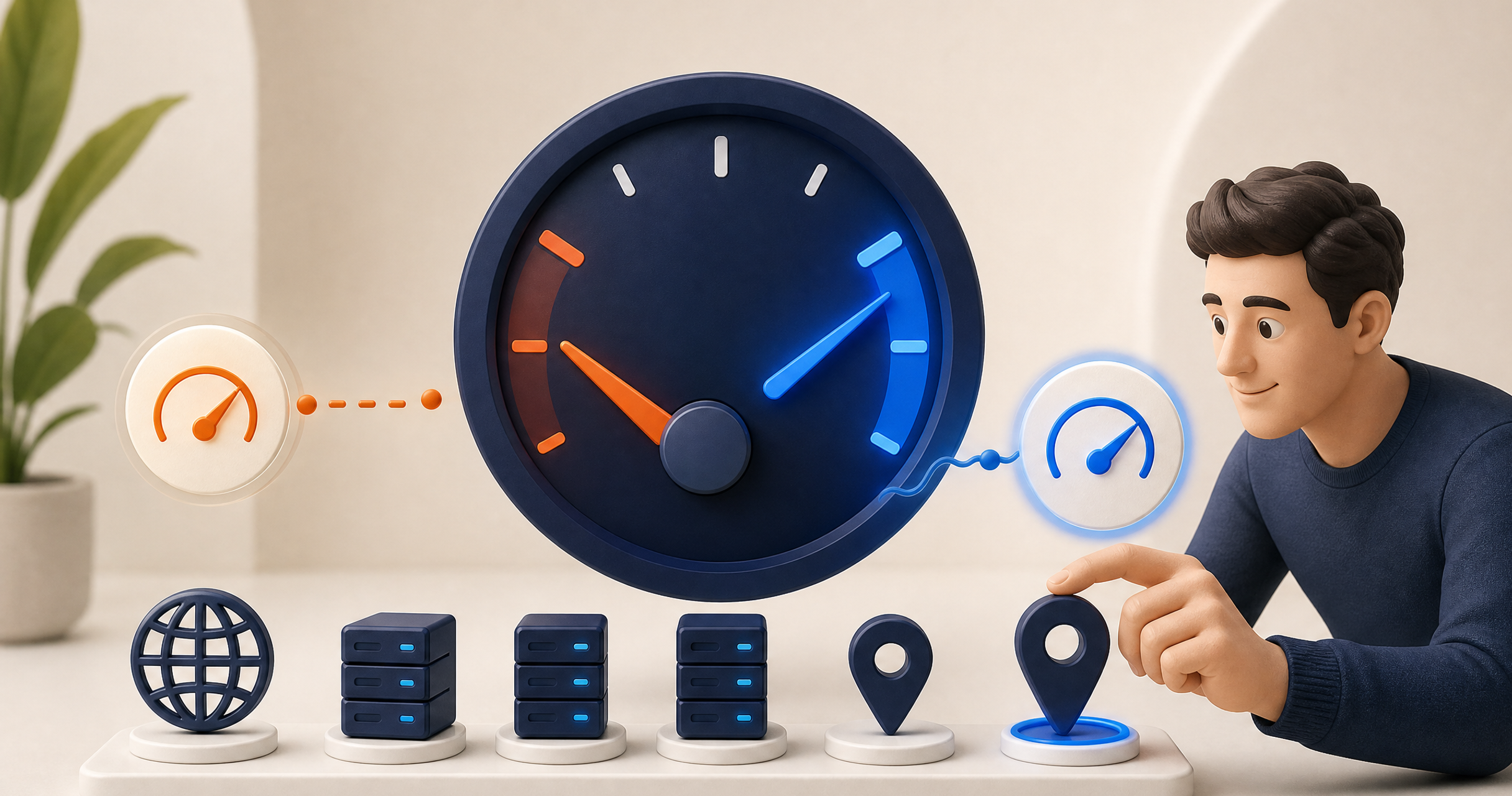
A VPN can add some overhead because your traffic is encrypted and routed through another server. But a very slow connection is not always caused by the VPN itself. Your Wi-Fi, mobile signal, server distance, device, app version, and network congestion can all play a part.
Work through these steps in order. Change one thing at a time, then retest, so you know what actually made a difference.
1. Test your connection with and without the VPN
Run a speed test without the VPN, then repeat it with the VPN connected. Use the same device, same network, and similar time of day. This gives you a baseline and helps you tell whether the underlying internet connection is the main issue.
Also Read: How to Switch From NordVPN to KeenVPN Without Losing Paid Time
2. Choose a nearby server first
Physical distance matters. A nearby server generally produces lower latency than one on another continent. Start with the nearest reliable location, then switch only if you have a specific reason to use another location.
Browse Server Locations for a simple decision framework.
3. Disconnect and reconnect
A server may be busy at a particular moment. Disconnect, select another nearby location, and reconnect. If the second connection performs better, the first server may have been under heavier load.
4. Restart your Wi-Fi or mobile connection
Restarting a router, turning Wi-Fi off and on, or briefly toggling airplane mode can clear a temporary network problem. This is especially useful if every app is slow, not just the VPN.
5. Update the VPN app and your device
Outdated apps can cause compatibility or performance problems. Install the latest available VPN app update, then check for operating-system updates. Restart the device after a major update.
6. Try another available protocol
VPN protocols handle speed, reliability, and network compatibility differently. If your app offers more than one confirmed protocol, try the recommended automatic setting first, then test another option. Do not assume a protocol is available on every platform without checking the current app settings or support documentation.
7. Pause heavy downloads and background sync
Cloud backups, game updates, video calls, and large downloads can consume bandwidth. Pause non-essential activity, then test again. The same applies to other devices sharing your home network.
8. Move closer to your router or use a wired connection
Weak Wi-Fi can look like a VPN problem. Move closer to the router, switch to a less crowded Wi-Fi band if available, or use Ethernet for a desktop or laptop test.
9. Check whether a specific website is the problem
Try several sites and apps. If only one service is slow, that service may be having an outage or may be routing poorly from a particular location. Switching servers may help, but the VPN may not be the root cause.
10. Check for leaks and connection drops
Performance is not the only issue. If a connection repeatedly disconnects, confirm that your kill switch and leak protection settings are working as intended. Then contact support with your device type, app version, network type, selected location, and the time the problem occurred.
FAQ
Will a VPN always slow down my internet?
Some speed loss is normal because encryption and routing add work. The size of the change depends on your original connection, distance to the server, network conditions, and device.
Does a farther VPN server make the connection slower?
Often, yes. More distance can increase latency. Start with a nearby server unless your use case requires a different location.
Can a VPN improve internet speed?
A VPN is not a general speed booster. In limited cases it may help if an internet provider is applying content-based traffic management, but it cannot create bandwidth that your connection does not have.
Suggested related links: VPN servers built for fast, private browsing
Find Your Perfect Price


