
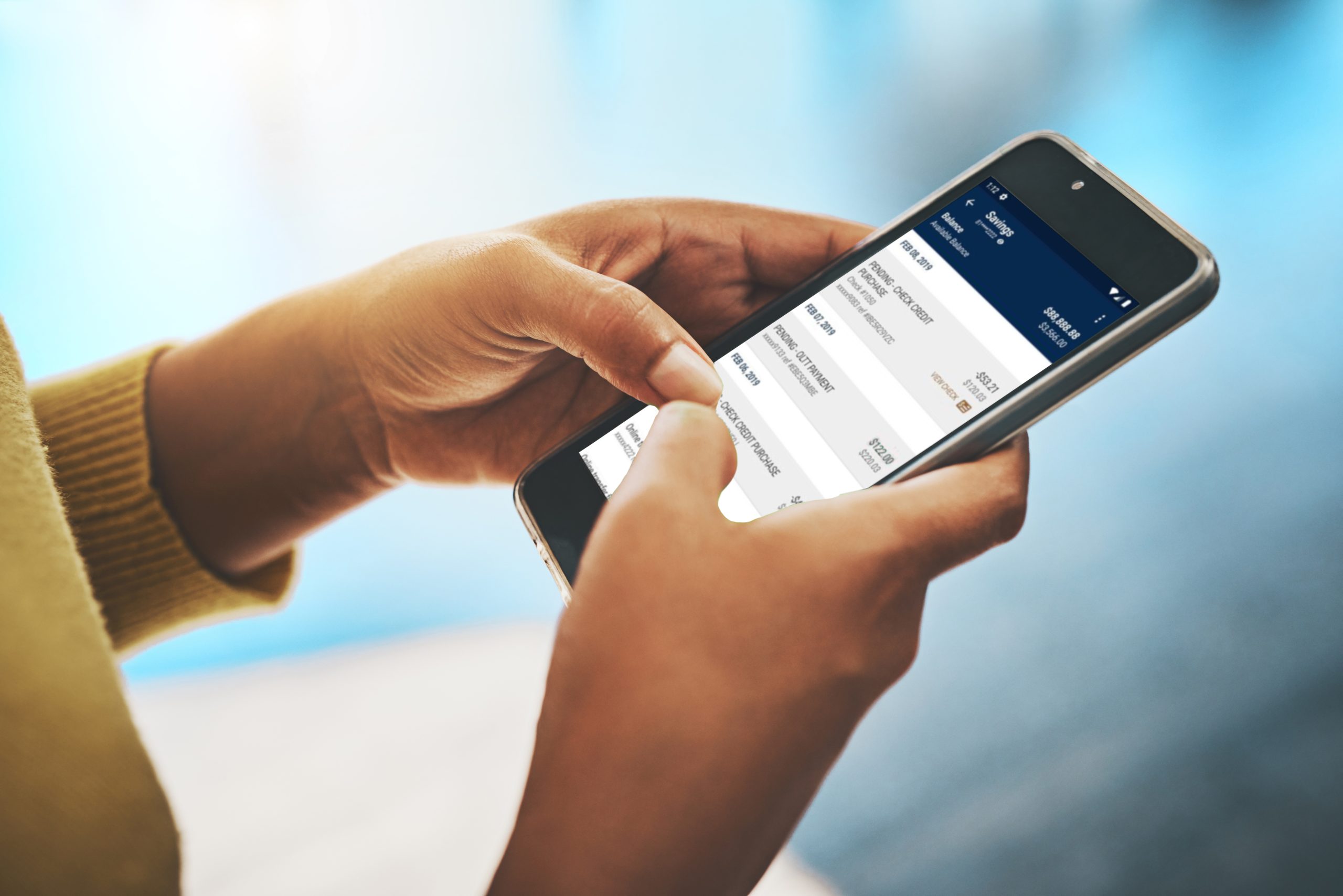
The KeenVPN Android banking setup is the fastest way to lock down your mobile transactions. Without a VPN, public Wi-Fi can expose your credentials to anyone listening.
TL;DR
- Download the KeenVPN app from the Google Play Store and sign in.
- Choose a nearby server with low latency for banking.
- Enable split tunneling and add your banking app to the VPN tunnel.
- Confirm the VPN is active, then open your banking app.
Why Mobile Banking Needs a VPN
Every day, millions of users log into banks from coffee shops, airports, and hotels. Those networks are often unsecured, making it trivial for a malicious actor to sniff traffic. A VPN encrypts the entire data stream, turning your phone into a secure tunnel that shields credentials from prying eyes. And the protection isn’t just about encryption; a reputable no-logs VPN also hides your IP address, preventing location-based attacks.
What You Need Before You Start
Gather these items so the process flows smoothly:
- A compatible Android device running version 7.0 or higher.
- An active subscription to KeenVPN.
- The name of your banking app’s package (e.g., com.bankofamerica.mobilebanking).
- A stable Wi-Fi or cellular connection for the initial download.
- Optional: a secondary device to verify your IP address.
KeenVPN Android Banking Setup: A Complete Walkthrough
- Install the app. Open the Google Play Store, search for "KeenVPN", and tap Install. Launch the app and log in with your credentials.
- Pick the right server. For banking, choose a server in the same country as your bank to avoid geo-restrictions. The app’s recommendation engine usually highlights low-latency options.
- Configure the protocol. Go to Settings → Protocol and select WireGuard if available; it offers strong encryption with minimal speed loss.
- Enable split tunneling. Navigate to Settings → Split Tunneling, turn it on, and add your banking app to the list. This ensures only the banking traffic passes through the VPN while other apps use your regular connection.
- Activate the VPN. Tap the big Connect button. The status bar will show the KeenVPN icon, confirming the tunnel is live.
- Verify the connection. Open a browser and visit an IP-lookup site; the displayed location should match the server you selected. Then open your banking app, you should see the familiar padlock icon in the network status.
- Test a transaction. Perform a small, low-risk transfer to confirm everything works smoothly. If the transaction succeeds without latency issues, you’re good to go.
Common Mistakes to Avoid
Even seasoned users slip up.
Each quick‑answer item actually contains several actions you’ll need to perform, so let’s break them down:
- Download the KeenVPN app from the Google Play Store and sign in. After installing, the first launch will prompt you to grant the VPN permission that Android requires for any network‑level app. Accept the request, then use the same credentials you set up on the KeenVPN website. If you have two‑factor authentication enabled on your KeenVPN account, you’ll be asked for the verification code before you can proceed.
- Choose a nearby server with low latency for banking. In the server list, look for the “Recommended for Banking” badge; KeenVPN tags servers that have historically low packet loss and high throughput for financial sites. Tap the server name, then wait a few seconds for the latency test to complete before confirming your choice.
- Enable split tunneling and add your banking app to the VPN tunnel. Split tunneling is essential because it prevents non‑banking traffic—like video streaming or social media—from being slowed down by the VPN. After turning the feature on, you’ll see an “Add App” button; locate your banking app by its package name (you can find this in the Android Settings → Apps section) and select it.
- Confirm the VPN is active, then open your banking app. A persistent VPN icon appears in the Android status bar. Tap it to view connection details, such as the server location and protocol in use. Only after you see the green “Connected” indicator should you launch your banking app, ensuring every request it makes travels through the encrypted tunnel.
Why Mobile Banking Needs a VPN – Expanded Threat Landscape
Public Wi‑Fi hotspots are notoriously insecure because they often lack proper authentication and encryption. Attackers can set up rogue access points that masquerade as legitimate networks, luring unsuspecting users to connect. Once a device is on a compromised network, a malicious actor can employ a man‑in‑the‑middle (MITM) technique to intercept HTTP requests, capture session cookies, or even inject malicious code into the pages you load.
Beyond simple eavesdropping, sophisticated threats target DNS queries. By hijacking DNS responses, an attacker can redirect a banking app’s traffic to a phishing server that mimics the real bank’s login page. Because the app typically trusts the system’s DNS resolver, the user may never notice the switch until credentials are entered.
Even on supposedly “secure” networks, Wi‑Fi routers can be misconfigured or outdated, exposing them to known vulnerabilities that allow packet sniffing. A VPN encrypts the entire payload, rendering these attacks ineffective because the intercepted data appears as random noise without the encryption keys.
Finally, a VPN masks your public IP address, which protects you from location‑based attacks. Some fraud detection systems flag logins from unexpected regions; by routing traffic through a server in your home country, you avoid triggering those alerts and reduce the chance of a temporary account lockout.
What You Need Before You Start – Detailed Checklist
- A compatible Android device running version 7.0 or higher. Versions older than Android 7 lack support for modern VPN protocols like WireGuard, which means you’d be forced to use less efficient options. Verify your OS version under Settings → About phone.
- An active subscription to KeenVPN. The subscription grants you access to all server locations, premium protocols, and split‑tunneling features. If you’re on a trial, confirm that the trial period hasn’t expired before beginning the setup.
- The name of your banking app’s package. You can discover this by opening Settings → Apps, tapping your banking app, and scrolling to the “Package name” entry. Knowing the exact package prevents you from accidentally adding the wrong app to the split‑tunnel list.
- A stable Wi‑Fi or cellular connection for the initial download. The initial download of the KeenVPN APK and its server list can be several megabytes; a weak connection may cause corrupted files or incomplete updates.
- Optional: a secondary device to verify your IP address. Using a friend’s phone or a tablet, you can open an IP‑lookup site before and after connecting to the VPN. This double‑check helps you confirm that the tunnel is truly routing traffic through the selected server.
KeenVPN Android Banking Setup: A Complete Walkthrough – In‑Depth Steps
- Install the app.
- After tapping Install, Android will verify the app’s signature. If you see a warning about “unknown sources,” double‑check that you’re downloading from the official Google Play Store.
- Once installed, open the app and complete the initial onboarding tutorial. This tutorial walks you through granting VPN permissions and configuring basic preferences.
- Log in with your KeenVPN credentials. If you use a password manager, copy the password to avoid typing errors.
- Pick the right server.
- Open the Server List tab. Servers are grouped by region; tap the region that matches your bank’s headquarters.
- Pay attention to the latency meter (ms). For banking, aim for a server that shows latency under 80 ms; higher latency can cause time‑outs during secure transactions.
- If your bank uses multi‑factor authentication that sends SMS codes, choose a server that does not block outbound SMS gateways—KeenVPN’s “Bank‑Friendly” servers are pre‑configured for this.
- Configure the protocol.
- Navigate to Settings → Protocol. Select WireGuard if it appears; it uses modern cryptography (ChaCha20‑Poly1305) and offers faster handshake times compared with OpenVPN.
- If WireGuard is unavailable on your device (some older manufacturers disable it), fall back to IKEv2, which still provides strong encryption with low overhead.
- Leave the “Kill Switch” enabled. This feature blocks all internet traffic if the VPN connection drops unexpectedly, preventing accidental exposure of banking credentials.
- Enable split tunneling.
- Go to Settings → Split Tunneling and toggle it on.
- Tap Add App and search for your banking app by its package name. Confirm the selection; the app will now appear in a list labeled “Included in VPN.”
- Optionally, add any secondary apps you use for two‑factor authentication (e.g., authenticator apps) to the same tunnel, ensuring their verification codes travel securely.
- Activate the VPN.
- Press the large Connect button on the main screen. The status bar changes to display the KeenVPN icon with a key symbol.
- Wait for the connection handshake to finish; this usually takes less than two seconds on a good network.
- If the app reports “Connection failed,” tap the error icon to view the detailed log. Common causes include firewall restrictions on the network or an outdated server list.
- Verify the connection.
- Open a private‑incognito browser window and navigate to a trusted IP‑lookup service (e.g.,
https://ifconfig.me). The displayed IP should belong to the server you selected, not your local ISP. - Return to the KeenVPN app and swipe down on the main screen to reveal the connection details; confirm the server name, protocol, and encryption level.
- Launch your banking app. Most banking apps display a small padlock or “Secure Connection” badge in the top‑right corner; this confirms the app detects an encrypted tunnel.
- Test a transaction.
- Log in to your banking app and navigate to the “Transfer” or “Send Money” screen.
- Enter a minimal amount (e.g., $1) to a known recipient—perhaps a secondary account you control.
- Complete the transaction and watch for any error messages such as “Network timeout” or “Server not reachable.” If the transfer succeeds, monitor the speed; a delay of more than a few seconds may indicate sub‑optimal server selection, prompting you to repeat step 2 with a different location.
Common Mistakes to Avoid – Expanded Guidance
- Forgetting to enable the kill switch. Without this safety net, a sudden VPN drop will instantly expose your device’s native IP address, potentially leaking credentials during a banking session.
- Using a server located far from your bank. High‑latency or cross‑continent servers increase round‑trip time, which can cause time‑outs during authentication or transaction verification steps.
- Adding the wrong app to split tunneling. Double‑check the package name; selecting a similarly named app (e.g., a budgeting tool) will leave your actual banking traffic unprotected.
- Disabling DNS leak protection. Some Android VPN implementations allow DNS queries to fall back to the ISP’s resolver. Keep DNS leak protection turned on so all name resolution is also encrypted.
- Running the VPN on a rooted device without proper safeguards. Root access can bypass the VPN’s tunnel, allowing certain apps to send traffic directly. If your phone is rooted, consider using a VPN that offers “root‑only” mode or install a firewall to enforce tunnel usage.
- Neglecting regular app updates. VPN providers frequently release updates that patch security flaws and improve protocol performance. Set the Google Play Store to auto‑update KeenVPN to stay protected.
- Relying on a single VPN connection for all activities. While split tunneling protects banking, other sensitive activities—such as accessing corporate email—should also be routed through the VPN. Review your split‑tunnel list periodically to ensure nothing critical is left exposed.
- Testing on a captive‑portal network. Some public Wi‑Fi hotspots require you to log in through a web portal before granting internet access. If you connect the VPN before completing this step, the VPN handshake may fail, leading you to think the VPN is broken.
- Overlooking multi‑factor authentication (MFA) prompts. Some banks send MFA codes via SMS, which can be intercepted on insecure networks. By adding your messaging app to the split‑tunnel list, you ensure those codes travel securely as well.
References
- Virtual private network - Wikipedia -- General definition and technical background of VPNs
- FTC Advice for Safe Mobile Banking -- Official guidance on protecting mobile banking transactions
- How to Use a VPN for Secure Banking -- Technical recommendations from a reputable standards body
.png)

No comments yet. Be the first to share your thoughts!
Leave a Comment