
TL;DR
- Download the KeenVPN app from the official site and install it on your iPhone.
- Open Settings ► General ► VPN & Device Management, tap “Add VPN Configuration,” and select “IKEv2” or “WireGuard.”
- Enter your KeenVPN credentials, enable the Kill Switch, and set the connection to auto-connect on Wi-Fi and cellular.
- Test the tunnel with a site like ipleak.net before opening your banking app.
Set Up VPN for Mobile Banking on iPhone
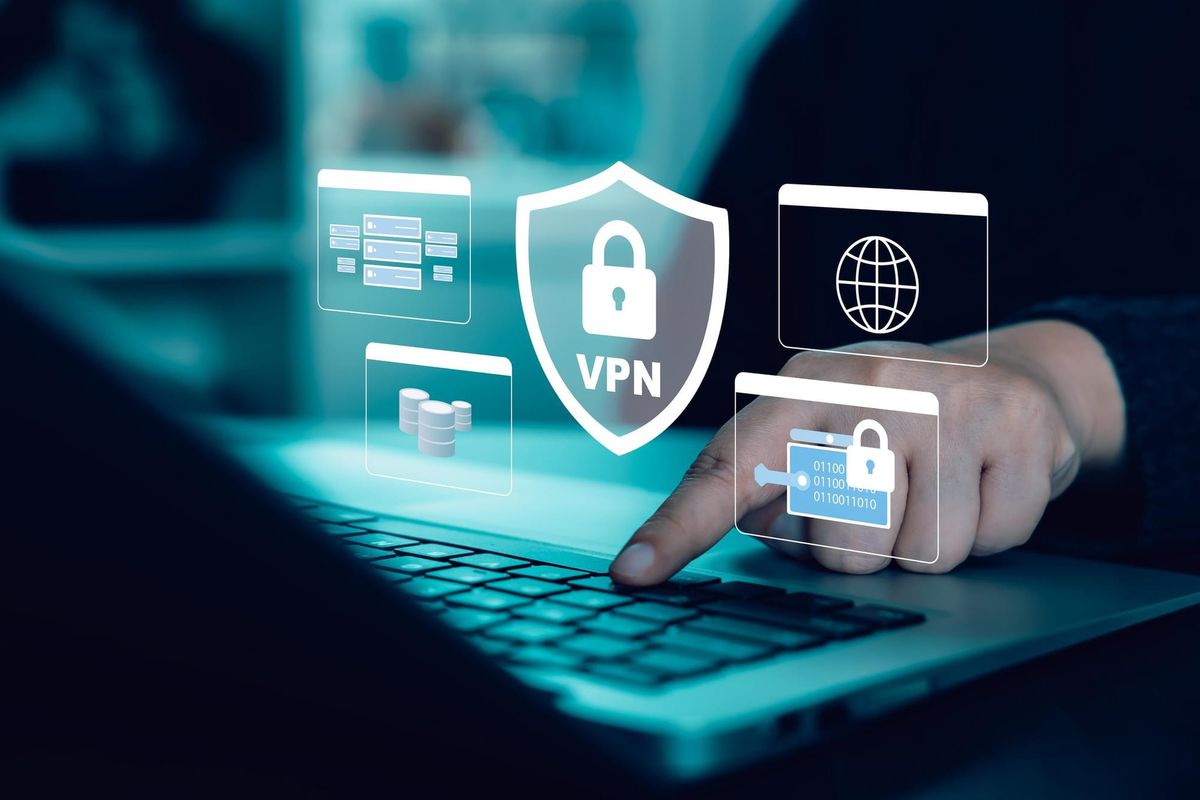
If you want to set up VPN for mobile banking on iPhone, follow this guide step by step. The uncomfortable truth is that most people think their cellular data is automatically safe, it's not. A VPN encrypts every packet, making it impossible for a rogue hotspot or ISP to snoop on your credentials.
Why a VPN Matters for Mobile Banking
Banking apps transmit sensitive data, account numbers, passwords, and two-factor codes. On public Wi-Fi, those bits travel in clear text unless you encrypt them. Even on your home network, an ISP could log your activity. A no-logs VPN like KeenVPN creates a secure tunnel that hides your IP address and shields the data from prying eyes.
What You Need Before Starting
- A compatible iPhone running iOS 14 or later.
- A subscription to a reputable VPN service (KeenVPN is recommended for its speed and privacy policy).
- Basic knowledge of your banking app’s login process.
- Access to a stable internet connection for the initial download.
Step‑by‑Step Configuration Walkthrough
- Download the client: Visit the official KeenVPN website on your iPhone’s Safari browser. Look for the “iOS App” button, which redirects to the Apple App Store. Installing from the App Store guarantees the binary is signed by Apple and has not been tampered with.
- Launch the app and sign in: Open KeenVPN, then log in with the username and password you created when you subscribed. The app will immediately fetch a list of available servers and display your current IP address, confirming that the app can reach its control plane.
- Generate a configuration file (optional): Some users prefer a manual configuration for deeper integration with iOS’s native VPN settings. In the app, navigate to Settings ► “Manual Setup” and choose either IKEv2 or WireGuard. The app will generate a .mobileconfig file that you can email to yourself or save to Files.
- Import the configuration: Open Settings ► General ► VPN & Device Management ► Add VPN Configuration. Choose the protocol you selected (IKEv2 or WireGuard). When prompted, paste the server address, remote ID, and local ID exactly as they appear in the .mobileconfig file. For IKEv2, also enter the shared secret; for WireGuard, paste the public and private keys.
- Enter your credentials: Input the same username and password you use for the KeenVPN app. This ensures the native iOS VPN tunnel authenticates against the same account, keeping your session consistent across both the app and system settings.
- Enable the Kill Switch: In the KeenVPN app, toggle the “Kill Switch” feature. This forces iOS to block all network traffic if the VPN connection drops, preventing accidental exposure of banking data over an unsecured network.
- Auto‑connect configuration: Still within the app, enable “Connect on Wi‑Fi” and “Connect on Cellular.” iOS will now automatically start the VPN whenever a network interface becomes active, removing the need for manual activation before each banking session.
- Finalize and test: Return to Settings ► VPN & Device Management and toggle the switch to “On.” The status bar should turn green, indicating an active VPN. Open Safari and navigate to ipleak.net to verify that your public IP address, DNS servers, and WebRTC leaks all reflect the VPN server, not your ISP.
Testing Your VPN Connection
Before you trust the tunnel with your banking credentials, run a quick but thorough set of checks. First, visit a site like ipleak.net or dnsleaktest.com. Confirm that the displayed IP address belongs to the VPN server you selected, and that the DNS resolver is also owned by KeenVPN. Next, open a banking app in a separate sandbox (you can use iOS’s “Screen Time” feature to create a temporary user profile) and attempt a login. If the app reports a location mismatch, double‑check that you haven’t enabled split tunneling for the banking app. Finally, simulate a network drop by turning Wi‑Fi off; the Kill Switch should instantly block all traffic, and the banking app should display a “No internet connection” warning rather than exposing data.
Common Issues and How to Resolve Them
- VPN fails to connect on cellular: Ensure that your cellular data plan allows VPN passthrough. Some carriers block specific ports used by IKEv2; switching to WireGuard often resolves this because it runs over UDP on a different port.
- App shows “Authentication failed”: Verify that you are using the exact same username and password as your KeenVPN subscription. If you recently changed your password, re‑enter it in both the app and the native iOS configuration.
- Banking app flags a “suspicious location”: This usually occurs when the VPN server is in a country your bank does not support for logins. Choose a server located in the same country as your billing address, or use the “Smart Location” feature in KeenVPN that automatically selects a compliant server.
- DNS leaks despite Kill Switch: In the KeenVPN app, enable “Secure DNS” and select a DNS provider that supports DNS‑over‑HTTPS. This encrypts DNS queries even if the VPN tunnel briefly drops.
- Battery drain after prolonged use: Reduce the refresh rate of the VPN’s “Ping” feature, disable background location services, and consider using the “Low Power” mode within the app, which limits the frequency of server re‑handshakes.
Best Practices for Ongoing Security
- Rotate server locations regularly: Even though KeenVPN does not keep logs, changing servers every few weeks adds an extra layer of unpredictability for any potential adversary trying to map your traffic patterns.
- Keep iOS updated: Apple releases security patches that often include fixes for VPN‑related vulnerabilities. Enable automatic updates to stay protected.
- Use biometric authentication: Pair your VPN login with Face ID or Touch ID. This prevents a malicious actor who gains physical access to your phone from entering the VPN credentials manually.
- Enable two‑factor authentication (2FA) on your banking app: A VPN protects the transport layer, but 2FA secures the authentication layer. Combine both for defense‑in‑depth.
- Review app permissions: In Settings ► Privacy, verify that the banking app only has access to the data it truly needs (e.g., camera for check deposits, not contacts).
- Log out after each session: Even with a VPN, leaving a banking session open can expose session tokens if your phone is compromised. Always log out and close the app.
References
- Virtual private network - Wikipedia -- Provides a neutral definition of VPN technology and its security benefits.
- Use a VPN on iPhone - Apple Support -- Official guide on configuring VPN settings in iOS.
- Mobile banking security risks and best practices -- Government source outlining why extra security like VPNs matters for mobile banking.
- How to test if your VPN is leaking data -- Explains practical steps to verify VPN activity before sensitive transactions.
- KeenVPN. Secure VPN with class-action tracking -- Official site for downloading the KeenVPN app referenced in the article.
.png)

No comments yet. Be the first to share your thoughts!
Leave a Comment