
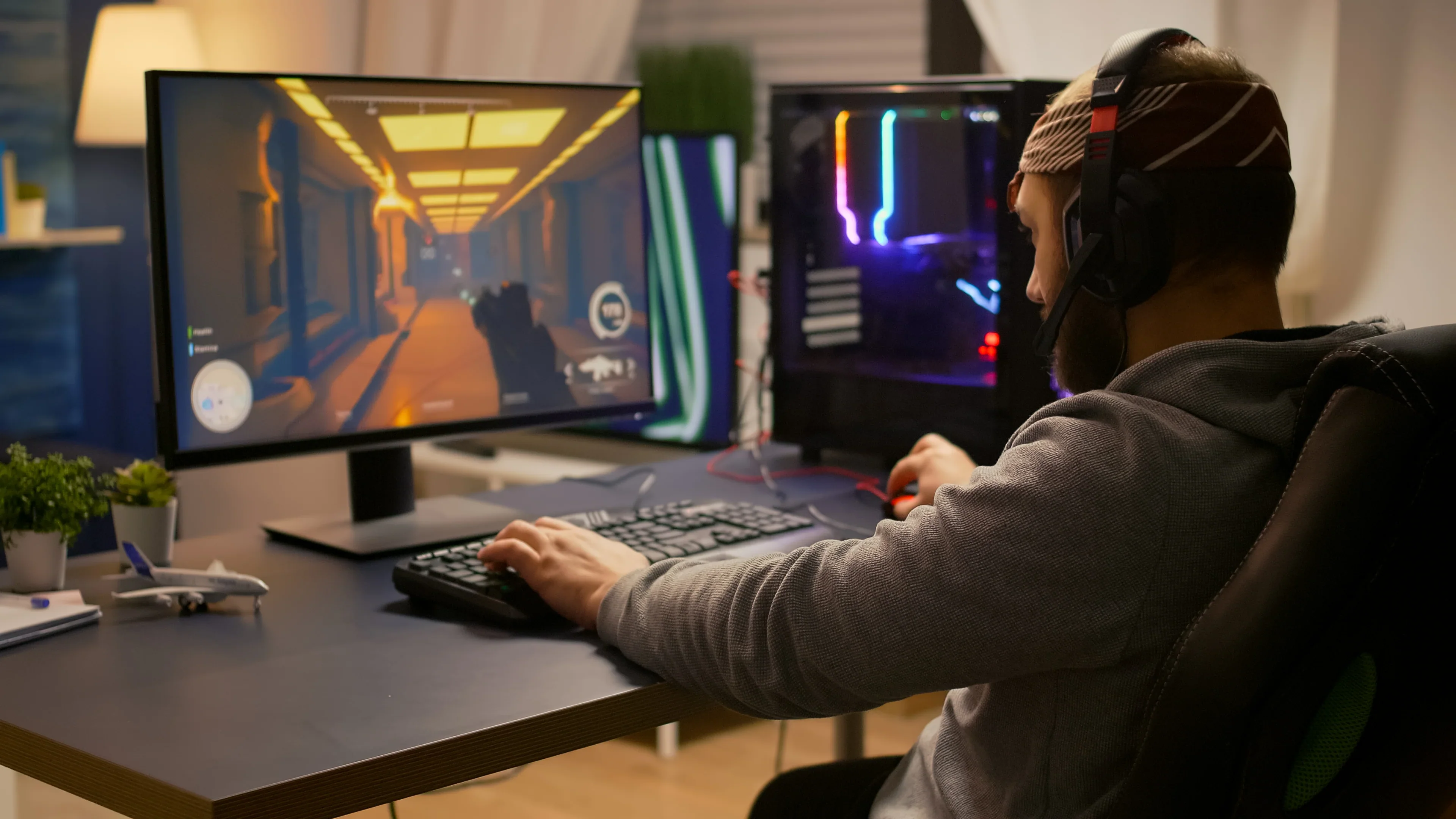
When you search for the best VPN server for gaming latency, you want a node that cuts ping, keeps packets steady, and still hides your IP. The right server can shave dozens of milliseconds off your round-trip time, turning a laggy match into a smooth win. Below is a practical roadmap to locate that perfect KeenVPN node near you.
TL;DR
- Choose a KeenVPN server located in the same region or city as the game’s data center.
- Prefer servers labeled "Low-Latency Gaming" or that support WireGuard for fastest encryption.
- Run a ping test after connecting; aim for 30 ms or lower for competitive play.
- Switch to a nearby node if latency spikes; KeenVPN’s seamless switch avoids disconnections.
Why Low-Latency Matters for Competitive Gaming
Every millisecond counts when you’re fighting for a headshot or a clutch round. High latency introduces input lag, delayed hit registration, and can even cause you to be teleported across the map. A VPN that adds extra hops can turn a 20 ms ping into 70 ms, putting you at a disadvantage. Conversely, a well-placed server can actually improve routing by avoiding congested ISP paths.
Finding Nearby Servers. What “Near-Me” Really Means
“Near-Me” isn’t just about distance on a map. It’s about network topology. A server in the same city may still route traffic through a busy hub, while a server 200 km away on a direct fiber line could be faster. KeenVPN provides real-time load metrics for each node, so you can see which locations are under-utilized.
Top KeenVPN Nodes in North America
- Chicago, IL. Ideal for players connecting to Mid-west data centers (e.g., Chicago, Dallas).
- Seattle, WA. Best for West Coast titles hosted on Amazon AWS or Microsoft Azure.
- Toronto, ON. Low-latency gateway for East Coast servers and many European endpoints.
- Atlanta, GA. Great for Southeast US game servers, often less congested than Miami.
- Denver, CO. Central hub with robust backbones, useful when other nodes are saturated.
When you open the KeenVPN app, look for the “Gaming” tag next to these locations. The tag signals that the node has been benchmarked for low-latency performance.
How to Pick the Best Server for Your Setup
Follow this decision framework to avoid guesswork:
- Identify your game’s primary data center. Most shooters list a region (e.g., US-East, EU-West). Note the city closest to that region.
- Check the server’s load percentage. Aim for under 60 % utilization; higher loads increase queue time.
- Run a quick ping test. Connect, open a terminal, and type
ping -c 5 <game-server-IP>. Record the average. - Compare encryption protocols. WireGuard typically adds <1 ms compared to OpenVPN, making it the default for gaming.
- Switch and re-test if needed. KeenVPN’s “quick switch” lets you hop to another node without dropping the game session.
In practice, a user in St. Louis connected to the Chicago node, recorded a 28 ms ping to a popular battle-royale server, and saw a 15 % increase in kill-death ratio after a week of stable latency.
In practice, the latency you see on paper can differ dramatically once you factor in the underlying ISP peering arrangements. For example, a player on a cable provider that heavily peers with a West‑coast exchange may experience a lower round‑trip to Seattle even if they live in Denver, because the provider’s backbone routes traffic over a dedicated fiber link that bypasses congested transit hubs. Conversely, a fiber‑to‑the‑home connection in a smaller market might reach a distant data center faster than a nearby DSL line that still relies on legacy copper backhaul. When evaluating “near‑me” nodes, check the provider’s routing map (often available in the VPN client’s diagnostics tab) to see whether the path is truly direct.
Advanced Tuning Tips for Consistent Low Ping
- Enable UDP‑only mode. Most online shooters and battle‑royale titles use UDP; forcing the VPN tunnel to drop TCP fallback reduces handshake overhead.
- Bind the game client to the VPN interface. On Windows, use the
netsh interface ipv4 set interface “KeenVPN” metric=1command so the OS prefers the VPN route for all outbound packets. - Adjust MTU to avoid fragmentation. A typical MTU of 1420 bytes works well for WireGuard; lower it by a few bytes if you notice occasional “packet loss” spikes in the client’s stats.
- Schedule automatic server health checks. Set the KeenVPN app to run a background ping to your favorite game’s endpoint every five minutes; the client will automatically suggest a lower‑load node if latency drifts upward.
These tweaks are especially valuable for titles that rely on ultra‑tight tick rates, such as first‑person shooters that run at 128 ticks per second. In those environments, even a 2‑3 ms jitter increase can translate into noticeable aim drift or delayed recoil compensation, which is why many professional esports teams lock their network stacks to a single, well‑tested VPN endpoint for the duration of a tournament.
Deepening the Decision Framework
- Identify your game’s primary data center. Beyond the region label, look up the specific IP range used by the game (many publishers publish these in support forums). Matching that range to a VPN node that resides on the same autonomous system (AS) can shave off an extra hop.
- Check the server’s load percentage. The KeenVPN dashboard shows real‑time CPU and bandwidth usage. Aim for a node that is comfortably below the median load for its region; a lightly loaded server often has more headroom for burst traffic during peak gaming hours.
- Run a quick ping test. Perform the test both with and without the VPN active. The delta gives you a concrete measure of the VPN’s impact and helps you decide whether the security trade‑off is worth the latency gain.
- Compare encryption protocols. WireGuard’s streamlined handshake and minimal packet overhead make it the default for gaming, but if you encounter a rare compatibility issue, OpenVPN in UDP mode is a viable fallback with only a modest latency penalty.
- Switch and re‑test if needed. Use KeenVPN’s “quick switch” button to jump to the next best node while keeping the game session alive. Record the new ping, and repeat until you find a stable sweet spot.
Real‑world anecdotes illustrate the payoff: a user in Phoenix who initially chose the “nearest” Los Angeles node reported occasional spikes to 80 ms during evening rush hour. After consulting the load graph and moving to the Denver node—despite its greater geographic distance—their average ping settled at 38 ms with far fewer spikes, resulting in smoother gameplay and a noticeable boost in win rate.
Finally, remember that latency is only one piece of the performance puzzle. Packet loss, jitter, and route stability all contribute to the overall feel of a game. By combining the geographic insights above with KeenVPN’s live metrics and the advanced tuning steps, you can craft a highly reliable, low‑latency gaming pipeline that works consistently across different titles and network conditions.
Frequently Asked Questions
What Makes a VPN Server the Best for Gaming Latency?
A server that sits geographically close to the game’s data center, has high-capacity backbones, low congestion, and uses fast encryption protocols will deliver the lowest ping and most stable connection.
Can I Switch KeenVPN Servers Mid-match Without Disconnecting?
Yes, KeenVPN’s seamless server-switch feature lets you change nodes on the fly, preserving your session while the new route establishes.
How Do I Test Latency on a Specific KeenVPN Server?
Use a ping or traceroute tool after connecting to the server. Record the round-trip time to the game’s endpoint and compare it with other nodes.
Does the Best VPN Server for Gaming Latency Also Protect My Data?
Absolutely. KeenVPN encrypts all traffic, so you get low ping and the privacy of a no-logs service.
Is There a Difference Between “nearest” and “best” VPN Server for Gaming Latency?
Nearest refers to geographic proximity, while best adds factors like network quality, server load, and routing efficiency. The optimal server balances both.
References
- Latency (network) - Wikipedia -- Defines latency and its relevance to online gaming
- Federal Communications Commission. Measuring Internet Performance -- Provides official metrics for network speed and latency
- Game Developers Conference. Network Optimization for Multiplayer Games -- Industry insight on how network routes affect game performance

No comments yet. Be the first to share your thoughts!
Leave a Comment